
How do I code a video with the AI Assistant?
Overview
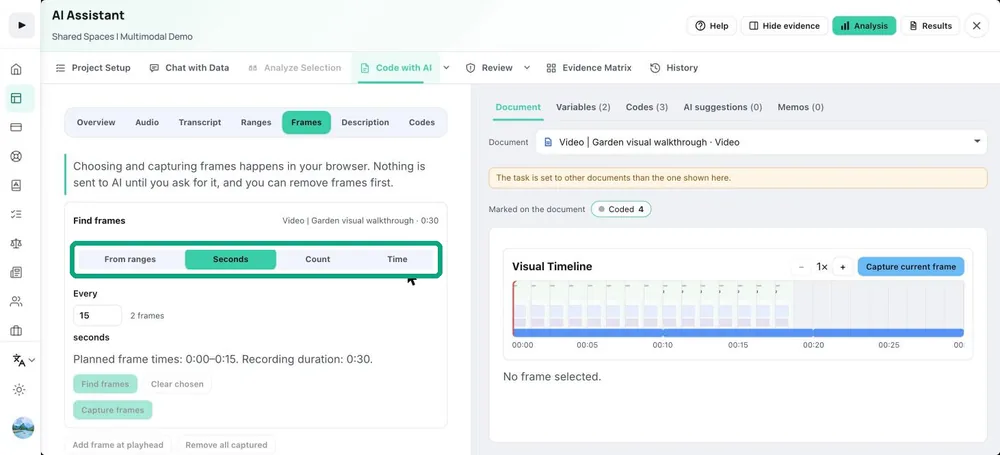
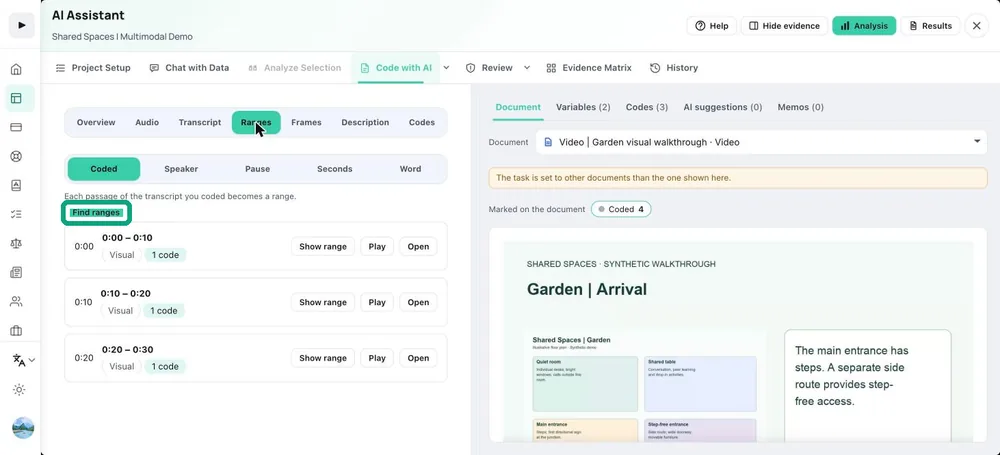
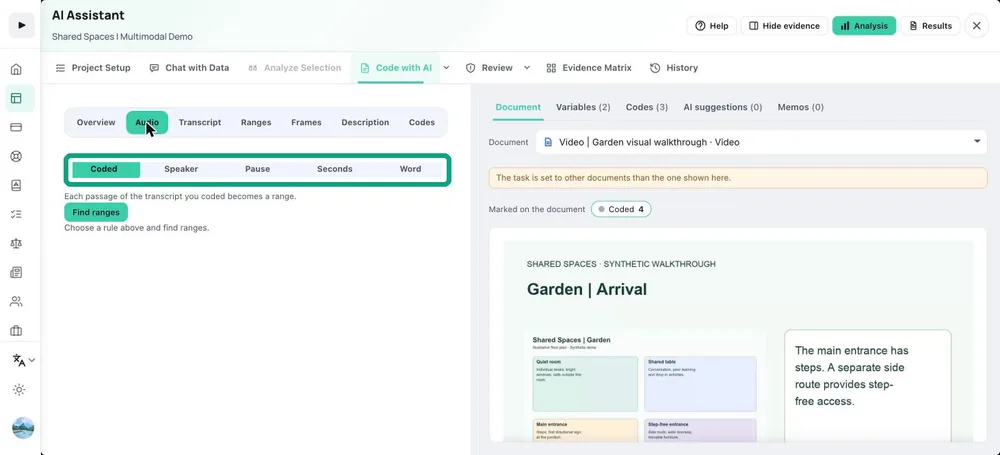
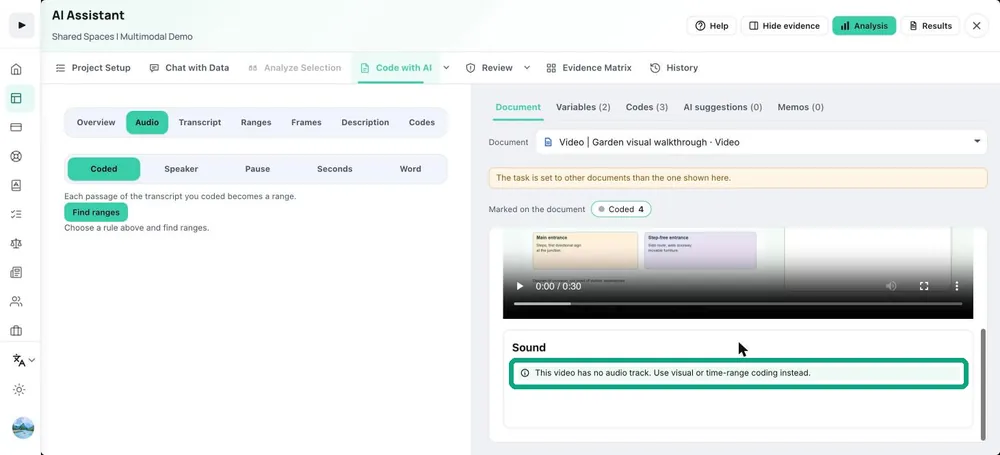
Open Code with AI → Single video (one video) or Multiple videos (a list with a picker to choose which videos are in scope). The tabs are Overview, Transcript, Time ranges, Frames, Regions, Description and Codes. The panel on the right follows the tab: the video, the playable transcript, the timeline with your time ranges, or the selected frame picture. A transcript is optional: frames and regions can be coded without one; a transcript adds the words around a frame and lets you code what is said.
What to do
- Transcript: transcribe the recording if you want to code what is said. Press a line to play it.
- Time ranges: drag on the timeline to select a stretch, then press Code this range.
- Frames: choose or capture frames, zoom the timeline, or press Capture current frame.
- Regions, Description and Codes: work on the captured frames with the same steps as for images. Describe a frame first; code suggestions rest on its visual description.